
Customizing Lichess pieces, boards, sounds and more with LiChess Tools
... not exactly technical, but many people requested this
Intro
LiChess Tools is a browser extension for Chromium and Firefox browsers that works on desktop and on mobile, adding features to Lichess that you can pick and choose from a large set of over 200 tools.
And while the extension's primary goal is to help with analysis and learning, it also has some cosmetic functionalities that I am going to discuss in this blog.
Boards
The Lichess board customization system is really good. You can choose from a series of 25 or more options, then change stuff like opacity, hue and contrast to get the board of your dreams. However, sometimes you just want your own custom board, just the way you like it. Here is where the Custom Board Image feature in LiChess Tools comes in.
To access it, just go to the normal Lichess board selection menu top-right and press the + button to get more options. This gives you the option for a Custom board: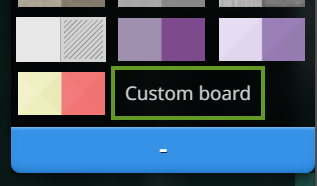
If you click it, you will get a popup that allows you to either enter your own personal URL (it has to be published on the web somewhere) or choose from a series of extra boards that LiChess Tools adds (about 80 so far):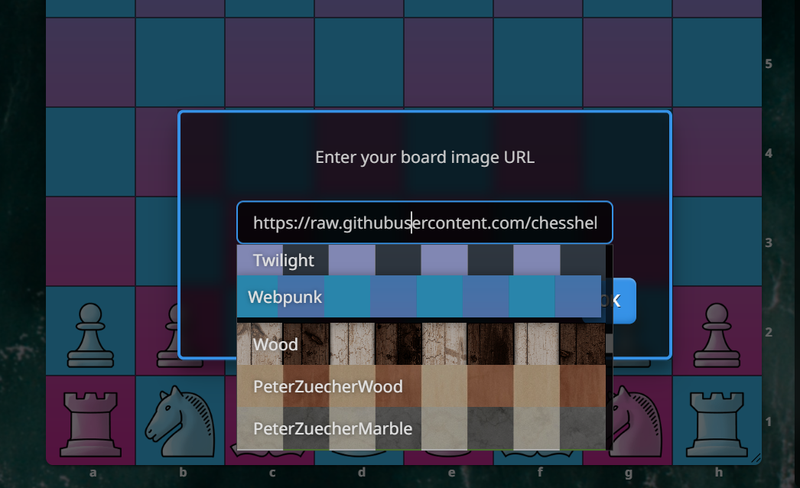
The toggles for opacity, contrast and hue work on these as well.
Piece sets
Lichess also has a large set of piece sets you can choose from, approximately 40, but with the LiChess Tools feature Extra Piece Sets you get a lot more. Also, the feature allows you to search a piece set by name or find the best piece set for you in a tree or a grid of pieces arranged based on their similarity.
Because there are A LOT of chess piece sets, enabling them is a little more complicated, as you have to go to the LiChess Tools preferences and enable which piece sets you want to use: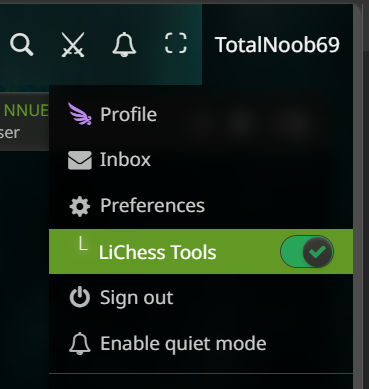
If you want to get them all, just enable everything:
Then go to the normal Lichess piece set selection, press the + buttons for more stuff and you get something like this: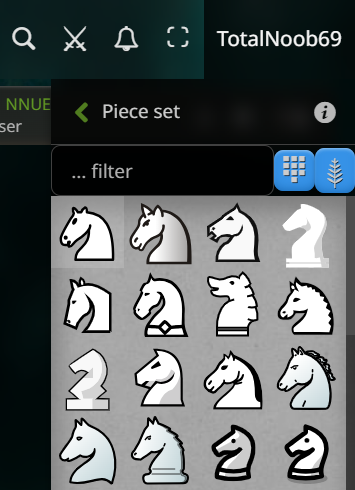
The filter is a text filter, the grid button will show all the piece sets in a grid and the tree button will show them in a tree: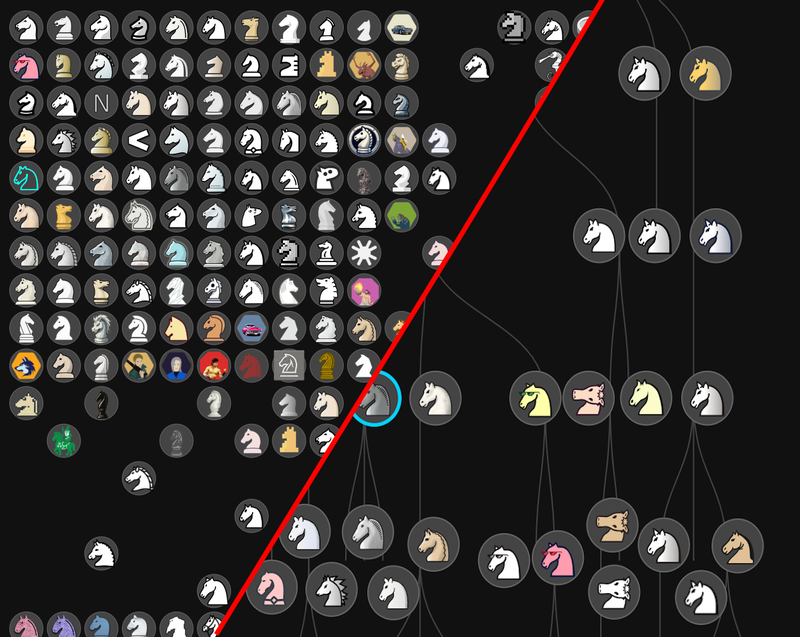
Sound themes
Just like with piece sets, LiChess Tools allows you to set up your own sound themes. Go to the LiChess Tools preferences and search for sound themes. Once you enable them, they will be available in the normal Lichess Sound selector:
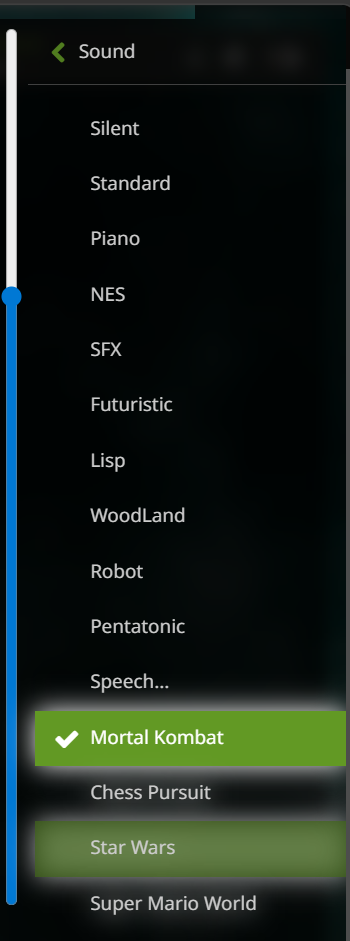
The sounds are a bit more difficult to create and the extra themes LiChess Tools adds may not have all of the sounds for a sound theme - they focus on game play and a generic notification sound, mostly.
Style Themes
The style themes feature adds them directly into the Lichess user menu: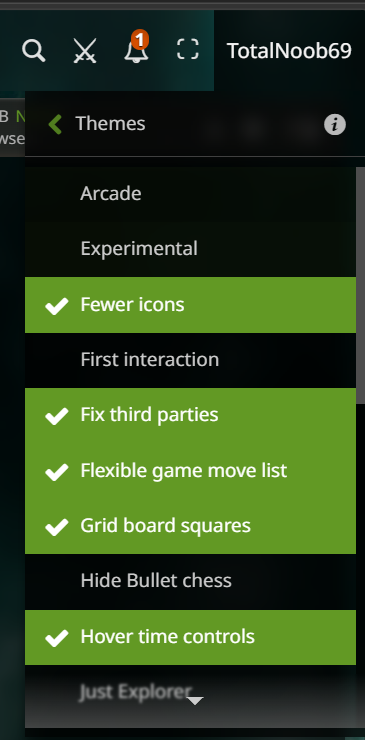
But you can also set them from the usual LiChess Tools preferences:
These can be used together or separately to add various functionalities. For example, it's highly recommended you use the Mobile theme when you are using LiChess Tools on mobile browsers. Grid board squares adds harder grid lines to your board regardless of what type of board you chose. As you can see, you can select a lot of things from this.
As an example, the Experimental and the Arcade themes are using enhanced board styling, which means you can style almost anything on the board depending on whose turn it is, which piece is selected, what piece has been captured, what opening it is, etc. Experimental is there just to show what's possible, not to use as a sane chess player.
I would love to show you more graphical examples, but for some unfathomable reason, Lichess blogs limit image count to 10. Instead, I will tell you what the Experimental theme does solely through CSS:
- the top right corner shows whose turn it is
- the bottom left corner shows which piece has been moved
- if an opening that has a country name in it is played, the flag is shown on the originating square
- there are arrows instead of originating/destination squares when moved
- there is a double headed arrow when castling
- the shapes of the possible destination squares are different for each side (light green triangles for White and dark green hexagons for Black)
- blood spatter on capture
- this is work in progress and not meant to be used, just demonstrate functionality
Lobby Page Elements
Last, but not least, is the feature to customize your Lichess lobby page. You can eliminate any of the elements there, but also add a few. For now the options are to add more counters and also show a list of your recent games and results.
Background
This is something that Lichess has had for a long time, but I am not sure many people realized it. If you go to Background and choose Picture, you can customize the background of your Lichess pages not only by choosing from the list, but also by simply pasting the URL of the image on the bottom with whatever image you want (as long as it's publicly available on the web).
Here, LiChess Tools has not made any changes, but I could add some extra images if you guys want to share them.
Your own stuff
If you want to make your own boards, piece sets, backgrounds or sound themes and share them with LiChess Tools, all you have to do is create a GitHub account and publish them there, then let me know. If you are not technical, you can ask me to add them to the LiChessToolsAdjacent repo that holds some stuff like that, but you won't be able to update them as it's my repository.
Also, if you annoy me too much with stuff, I may stop responding, since the visual and audio style of Lichess is not my expertise or my interest, but if you really want to join the community and share your creations, I am here for you.
Conclusion
I don't put much stock into non functional changes to an application, but after people asked me to implement this kind of stuff, I found myself using it, too. I find the Peter Zuecher Wood board to be very beautiful, even if it's similar in colors with the default Lichess one and I genuinely like the Glass piece set - from chesscom.
So if you guys are into this kind of thing, LiChess Tools is there for you. Enjoy!
You may also like
 TotalNoob69
I created a repertoire, learned how to play, played games... What now?
... a LiChess Tools extension use case ChessMonitor_Stats
Where do Grandmasters play Chess? - Lichess vs. Chess.com
This is the first large-scale analysis of Grandmaster activity across Chess.com and Lichess from 200… TotalNoob69
The Qc7 variation of Alekhine's Defense, when White annoyingly plays Nc3
... how to still have fun against chess accountants thibault
How I started building Lichess
I get this question sometimes. How did you decide to make a chess server? The truth is, I didn't. CM HGabor
How titled players lie to you
This post is a word of warning for the average club player. As the chess world is becoming increasin… TotalNoob69